

How to Generate Clips from Long‑Form Videos and Publish Them in the Community Media Network
Overview
Use Clip It when you want to transform existing long‑form video content, such as interviews, webinars, product demos, shows, or live streams - into short, engaging clips that perform better across feeds, communities, and placements.
This guide is designed for:
- Content and editorial teams repurposing long‑form assets
- Media and commerce brands scaling video output without re‑editing from scratch
- Growth teams optimizing engagement and retention inside owned web and app properties
This matters because short‑form video drives higher discovery and engagement, but manual clipping is slow, inconsistent, and hard to govern. Clip It combines AI‑assisted clipping with editorial control, ensuring speed without sacrificing brand safety or quality.
What Is a Clip It?
Clip It is Genuin’s AI‑assisted clipping workflow within Content Aggregation > Import > Clip It. It allows teams to:
- Ingest long‑form videos from multiple sources
- Automatically identify clip‑worthy moments
- Generate short‑form clips optimized for feeds
- Enrich clips with captions, thumbnails, and metadata
- Review, approve, and publish clips into communities and groups
Clip It turns long‑form libraries into a continuous engine for short‑form distribution inside your Community Media Network.
End‑to‑End Clip It Workflow
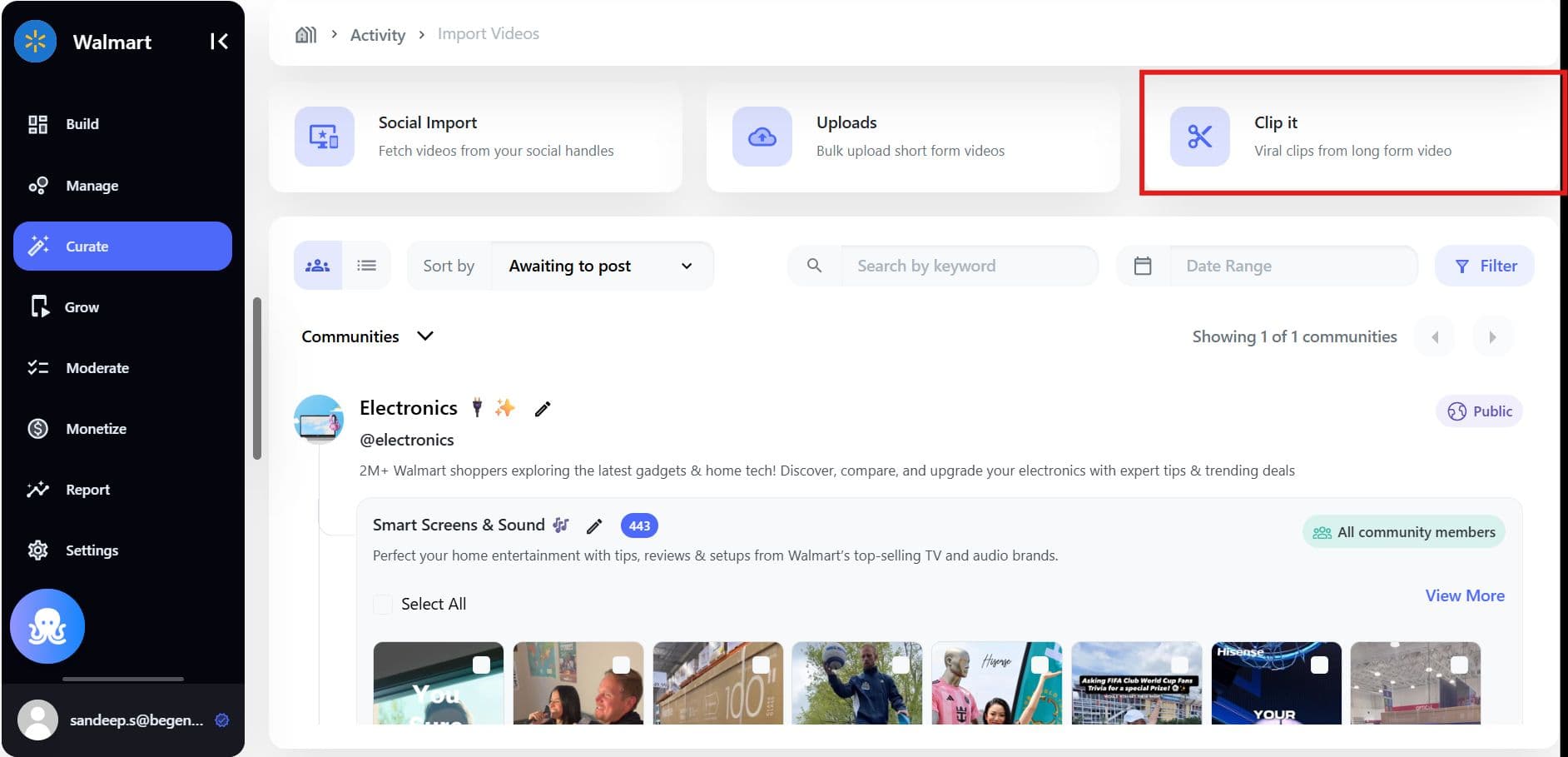
Step 1: Access Clip It
Navigate to: Brand Control Center > Curate > Activity > New Post > Clip It
This is the centralized workspace for managing all long‑form‑to‑short‑form workflows.
Step 2: Add a Long‑Form Video
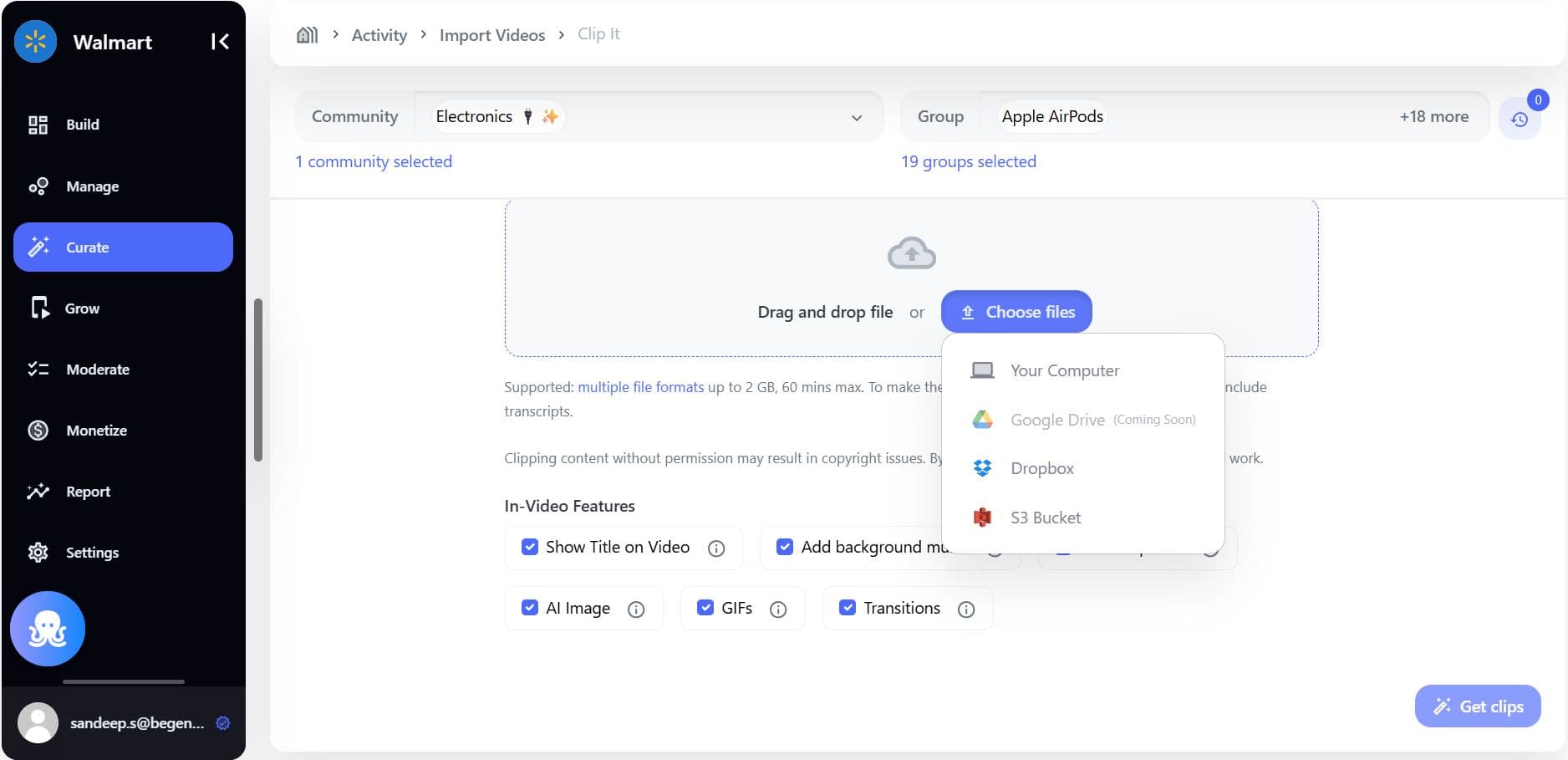
You can bring long‑form content into Clip It from:
- Direct uploads
- Cloud storage or CMS libraries
- Previously ingested videos from Uploads or Social Import
Once added, the video enters processing and becomes available for clipping.
Step 3: AI‑Assisted Clip Generation
Adaptive Genuin Intelligence analyzes the video to:
- Identify high‑engagement moments
- Detect topic shifts and highlights
- Suggest multiple clip options
Each suggested clip includes:
- Start and end timestamps
- Suggested title and caption
- Initial aspect ratio and duration
Teams can:
- Accept AI‑generated clips
- Manually adjust clip boundaries
- Create additional custom clips
Step 4: Enhance Clips for Feed Performance
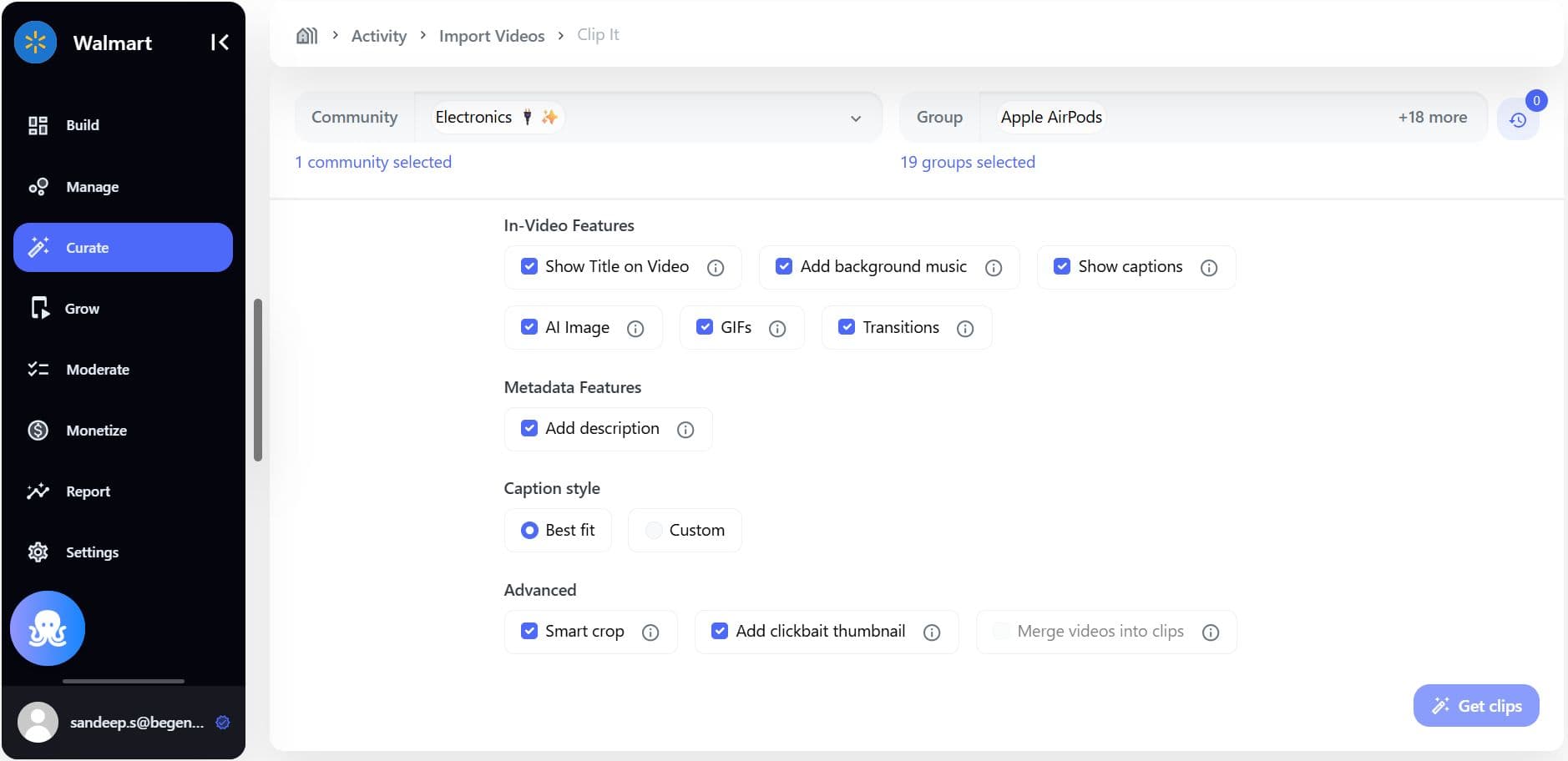
Before publishing, Clip It allows teams to enrich each clip with:
- Auto‑generated or edited captions
- Background music (where applicable)
- Thumbnails or click‑worthy frames
- Smart crop for vertical or square formats
- Descriptions and contextual metadata
These enhancements ensure clips are optimized for scroll‑based, feed‑first experiences.
Step 5: Classify and Route Clips to Communities
Each clip is enriched with AI‑generated context to:
- Understand what the clip is about
- Suggest relevant communities and groups
- Prepare the clip for downstream curation
Editors can:
- Accept AI recommendations
- Manually select communities and groups
- Route multiple clips in bulk
This ensures clips reach the right audience without manual tagging at scale.
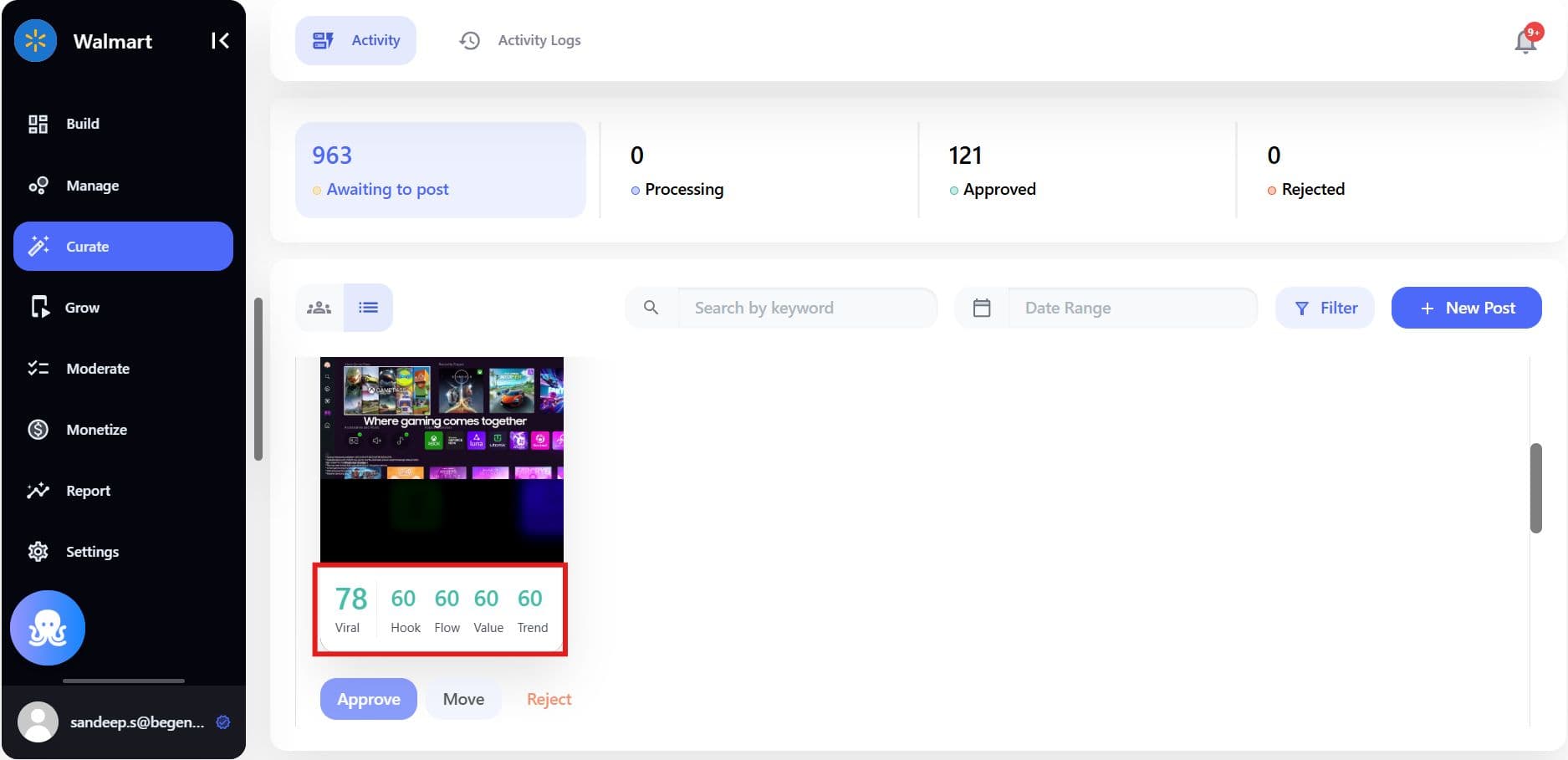
Step 6: Review and Approve via Curate
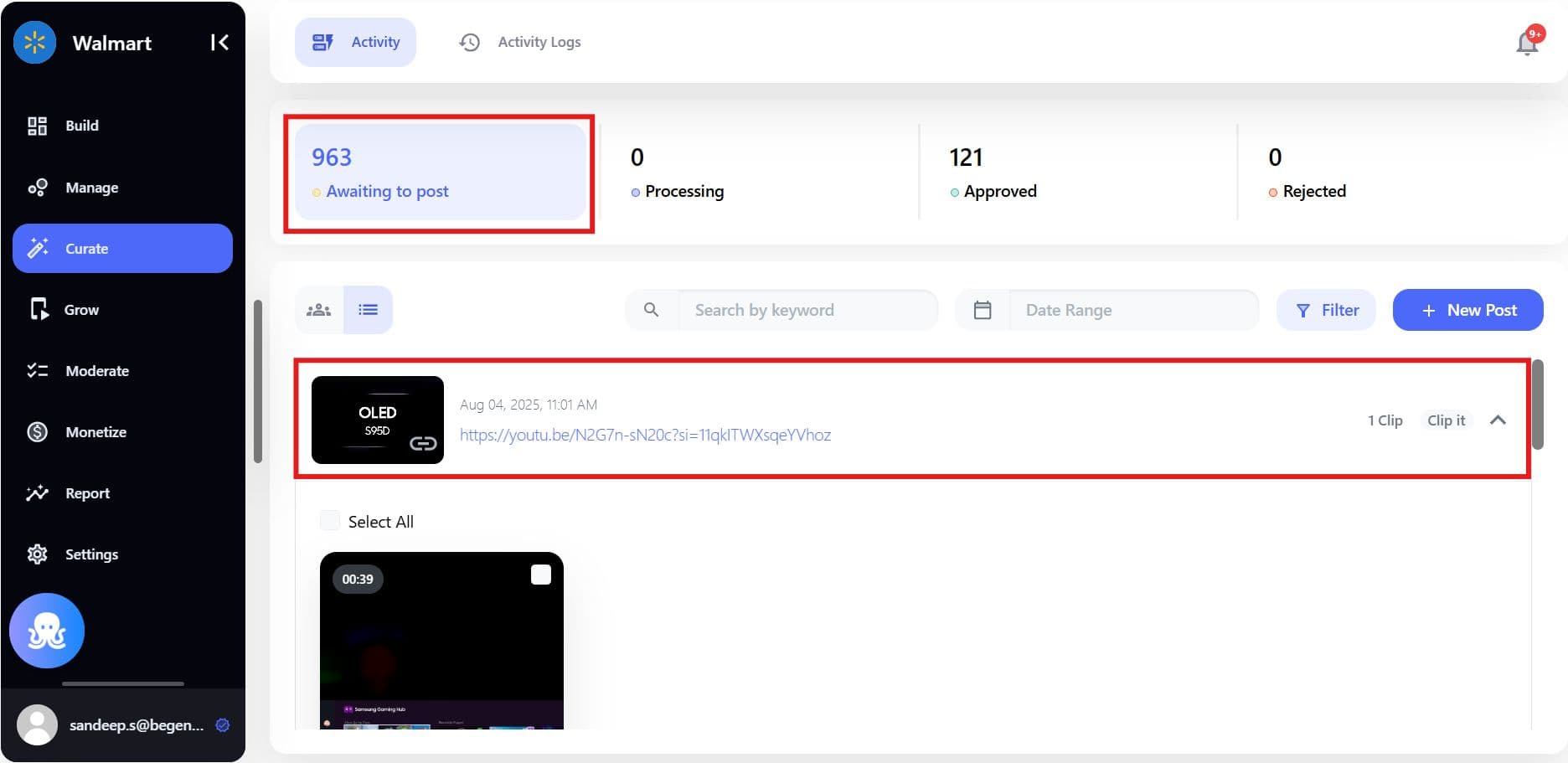
All generated clips flow into: Curate > Activity
Here, teams can:
- Review clips in context
- Approve, reject, or move clips
- Apply brand safety and editorial checks
- Take bulk actions for speed
Nothing publishes automatically unless your governance rules allow it.
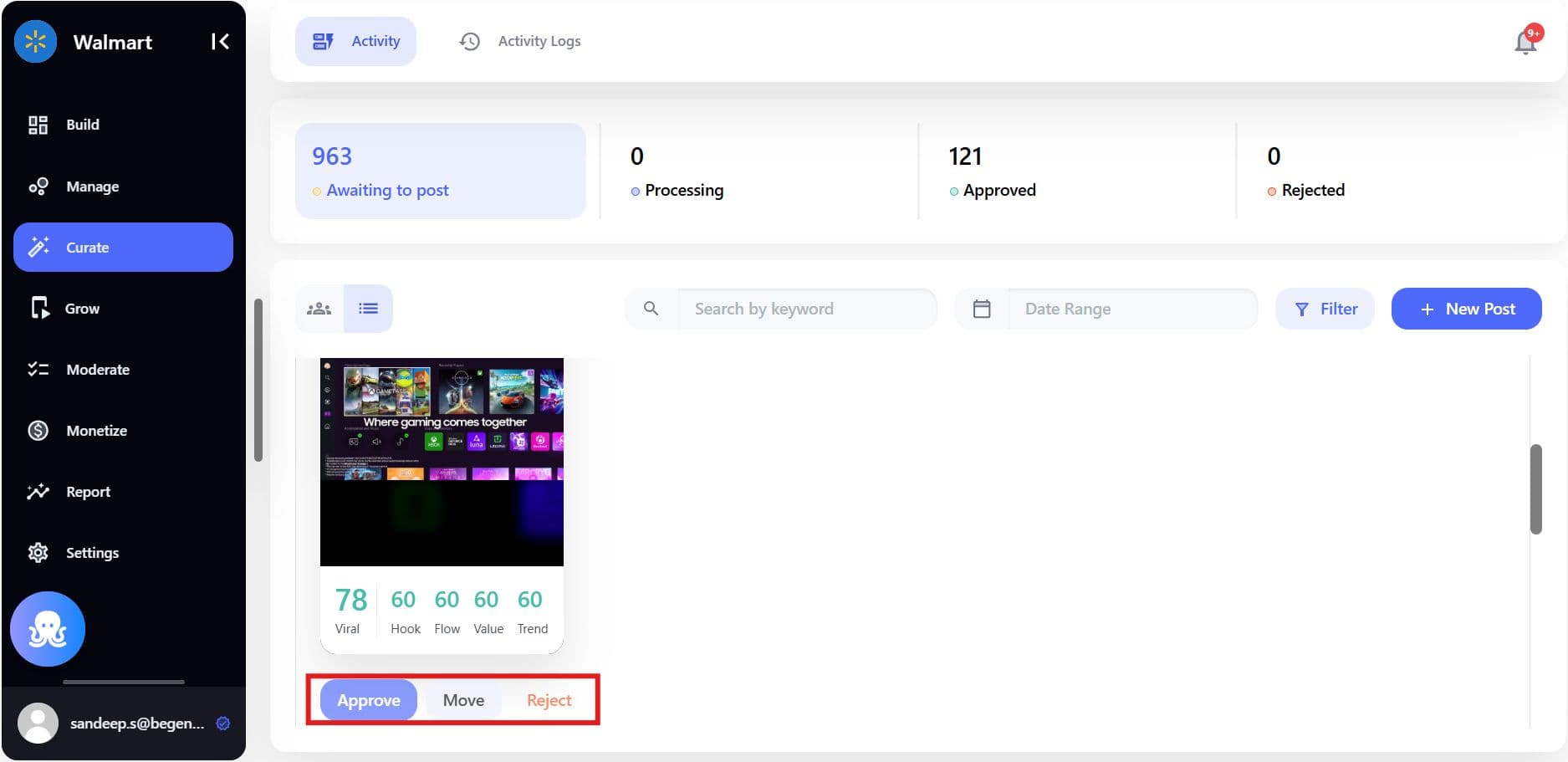
Step 7: Publish Clips to the Community Media Network
Once approved, clips are published into:
- Community feeds
- Group timelines
- Embedded placements across web and app
Published clips support:
- Likes, comments, and interactions
- Shoppable or sponsored modules (if enabled)
- Performance tracking and optimization
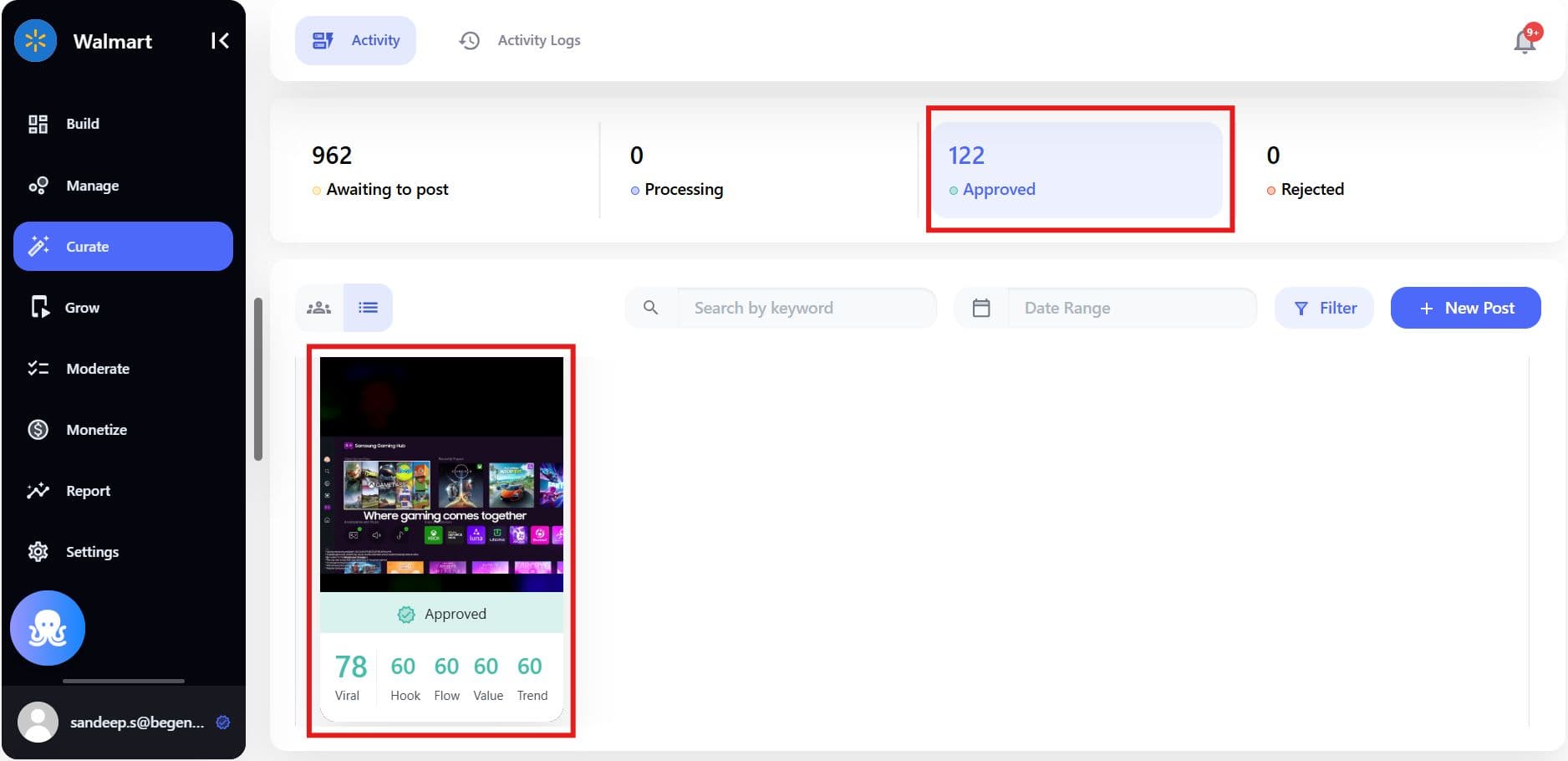
Governance, Brand Safety, and Control
Clip It operates under the same governance framework as the rest of Genuin:
- AI‑powered content moderation
- Manual editorial approval workflows
- Role‑based access and permissions
- Full activity logs and audit trails
This ensures that even AI‑generated clips remain brand‑safe, compliant, and intentional.
Best Practices for Using Clip It
- Start with high‑quality long‑form videos for better clip suggestions
- Use shorter clip durations for discovery feeds
- Review AI‑generated captions for tone and accuracy
- Route clips into focused groups for higher relevance
- Use Clip It regularly to build a steady short‑form pipeline
Specs & Limitations
Configuration and Constraints:
- Clip length and format are determined by the plan configuration.
- Certain enhancements may be specific to a region or contract.
- All clips must successfully pass moderation before they can be published.
Permissions:
- Role-based permissions are enforced across both the "Clip It" and "Curate" functions.
Technical Specifications (Supported Video Files):
- File Formats: mp4, mov, avi, wmv, mkv, webm
- Maximum Size: 2 GB
- Maximum Duration: 60 minutes
- Best Practice: To maximize the effectiveness of the clipping feature, videos should include transcripts.
Summary
Clip It enables brands to unlock more value from long‑form video by turning it into high‑performing short‑form content - quickly, safely, and at scale. By combining AI‑assisted clipping with strong editorial and governance controls, Clip It helps teams keep feeds fresh, relevant, and engaging across their owned Community Media Network.
