

How can a brand configure and control ad monetization using presets in the Brand Control Center?
Ad monetization works best when it is controlled, predictable, and aligned with user experience.
With Ad Configuration Presets in Brand Control Center, your team can:
- Set up ad strategies without engineering dependency
- Control how frequently ads appear and where they are shown
- Balance revenue vs user experience
- Apply configurations across Web, iOS, Android, and Mobile Web
- Preview how ads will appear before going live
This helps ensure:
- Better user retention
- Consistent brand experience
- Optimized revenue performance
Configuration Steps
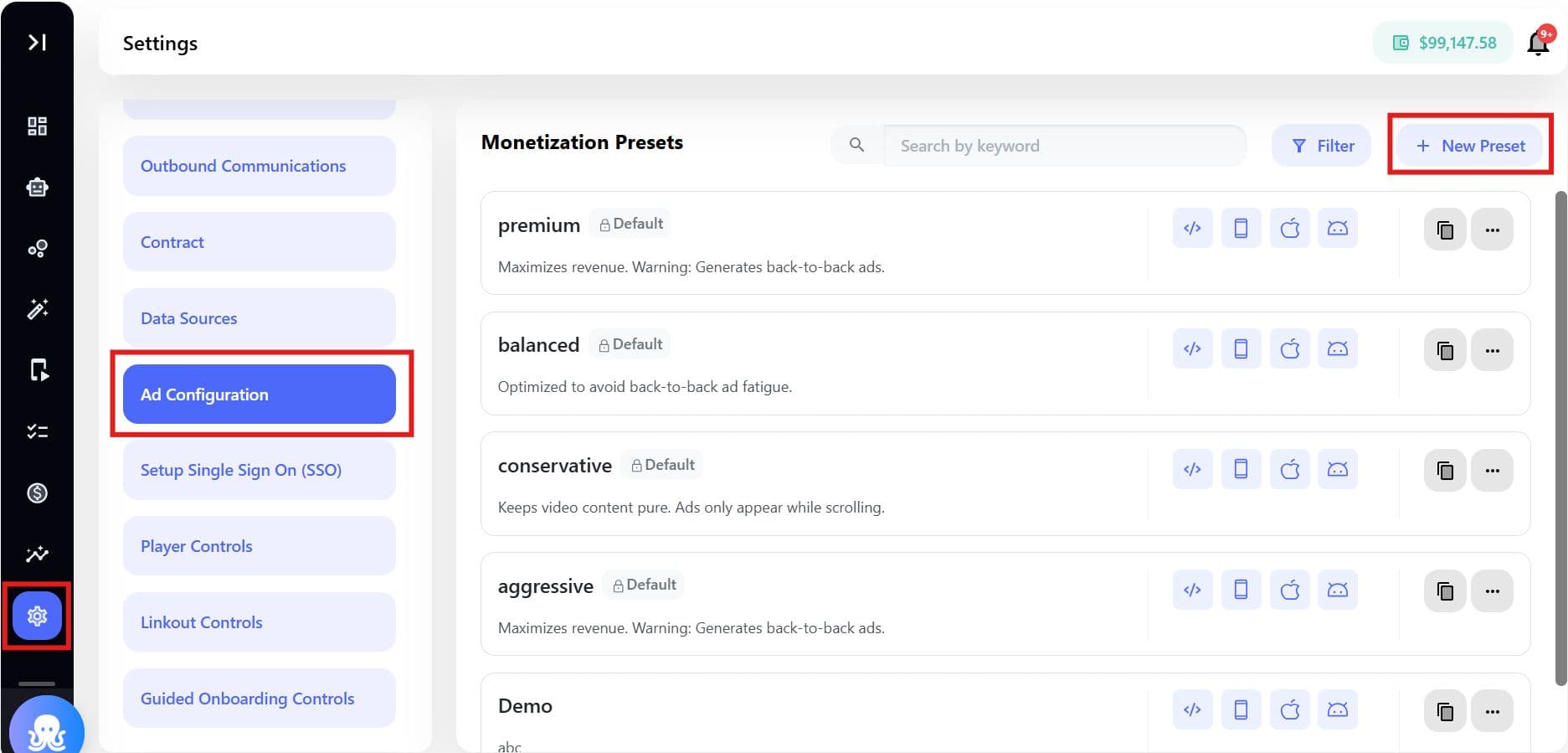
Step 1: Navigate to Ad Configuration
- Go to Settings > Ad Configuration in Brand Control Center
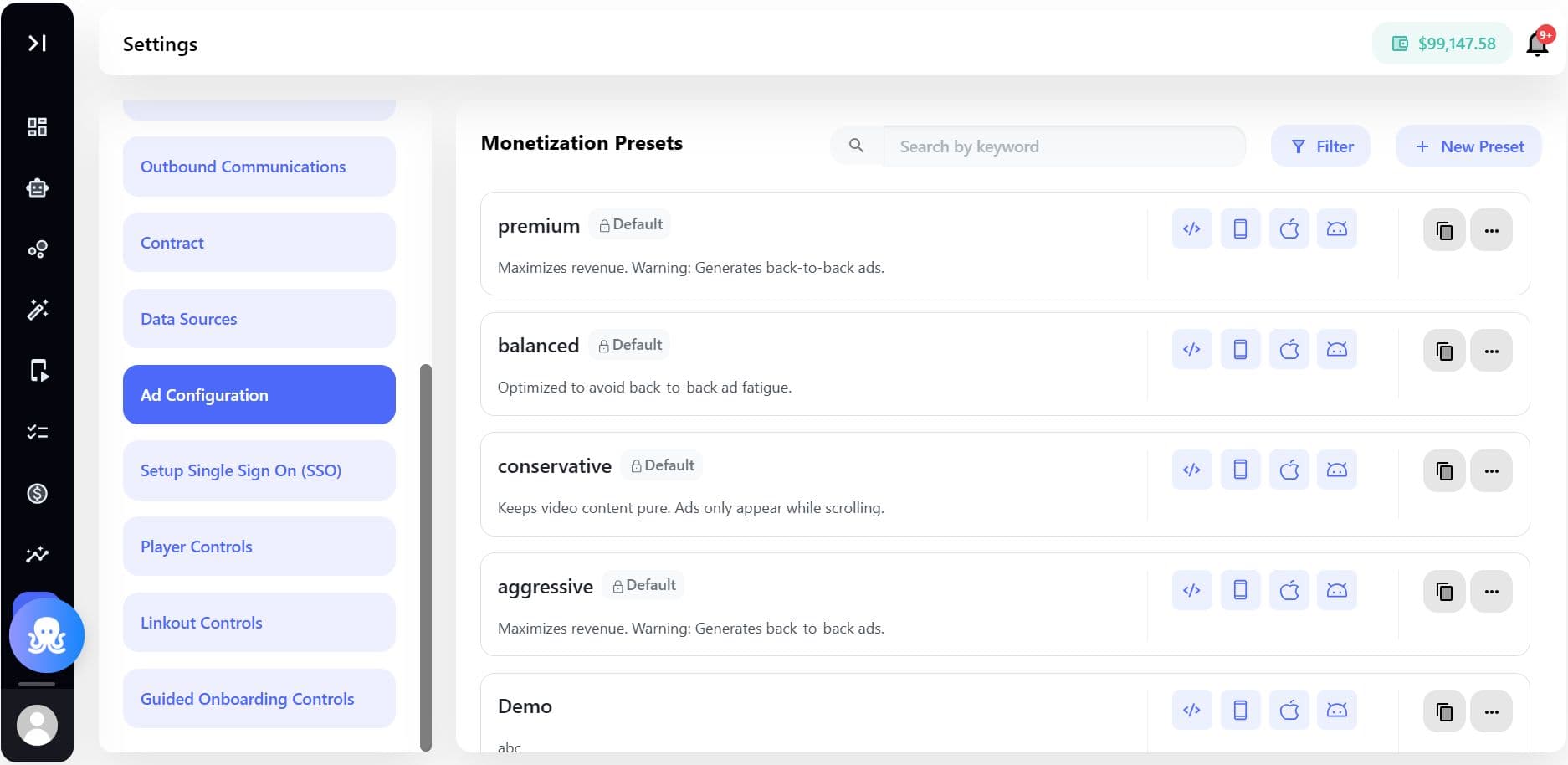
Step 2: Choose how to get started
You have two options:
Option 1: Use a Default Preset - Ready to use and pre-configured. Ideal for rapid setup.
Option 2: Create a Custom Preset - Optimal for advanced control or specific campaigns, offering complete customization.
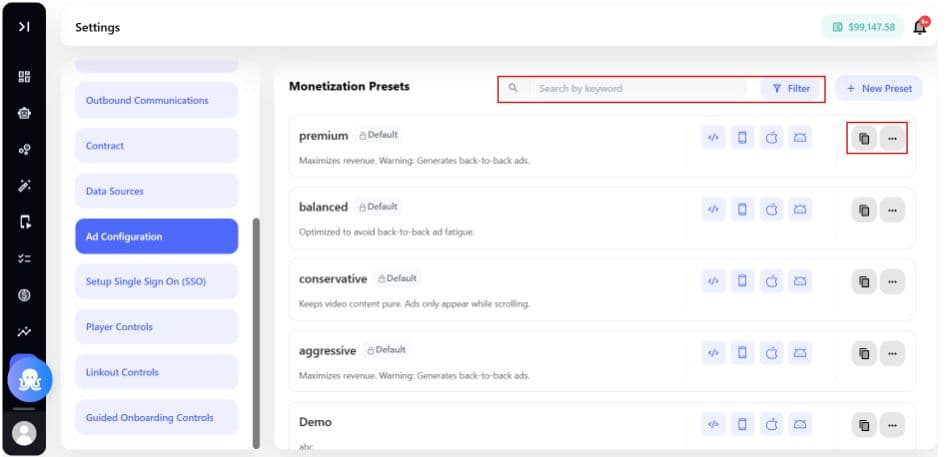
The Monetization Presets - List View offers the following functionalities:
- View all presets
- Search and filter
- Duplicate presets
- Create new presets
So, for Option 1, you can perform these actions:
- Search and Filter
- Duplicate Presets
- Edit or Delete Presets
2.1.1 Filters Available
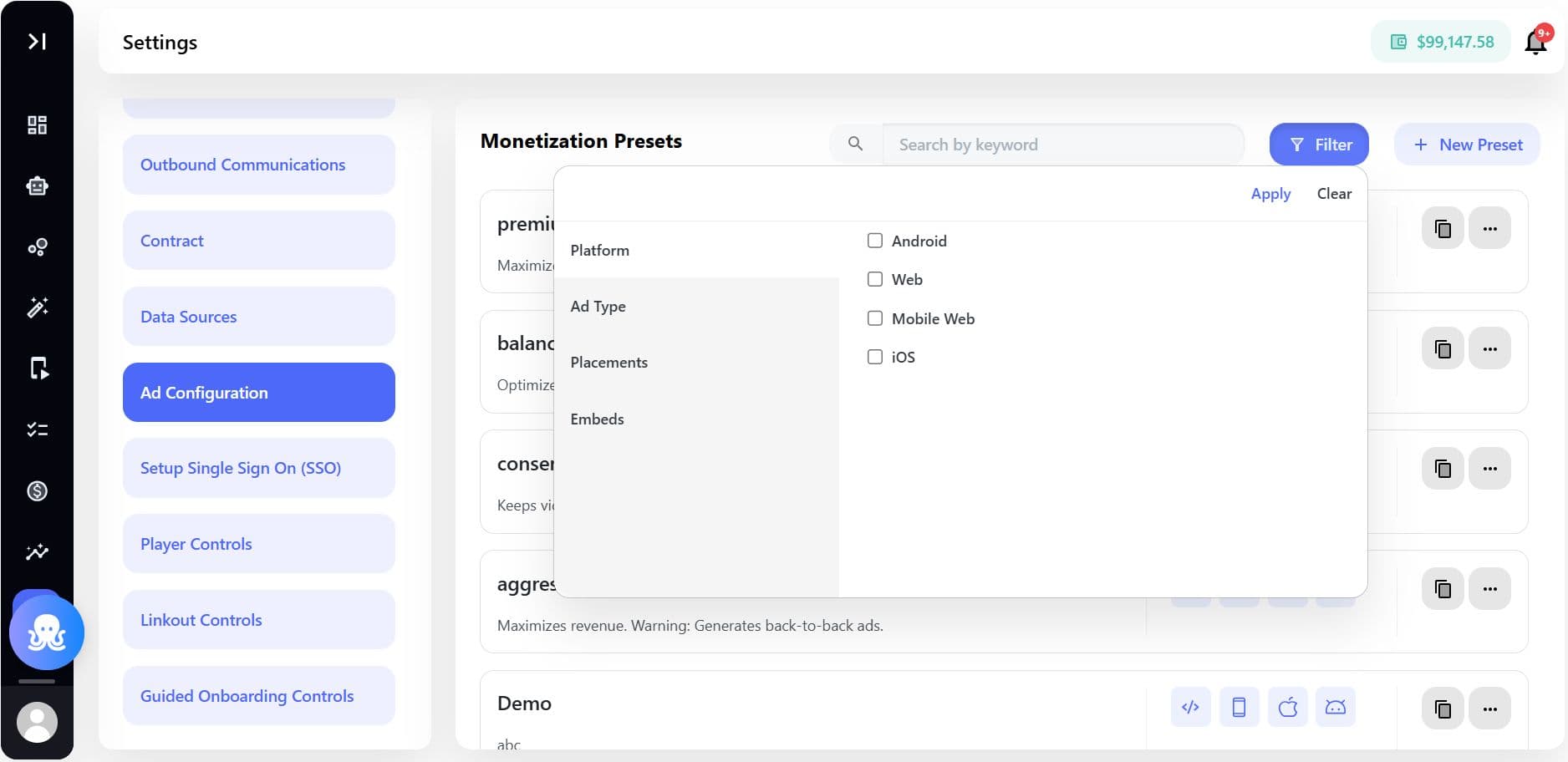
| Filter | Options |
|---|---|
| Platform | Web, iOS, Android, Mobile Web |
| Ad Type | In-Feed, In-Stream, Sponsored |
| Placements | All / specific |
| Embeds | All / specific |
2.1.2 Duplicate a Preset
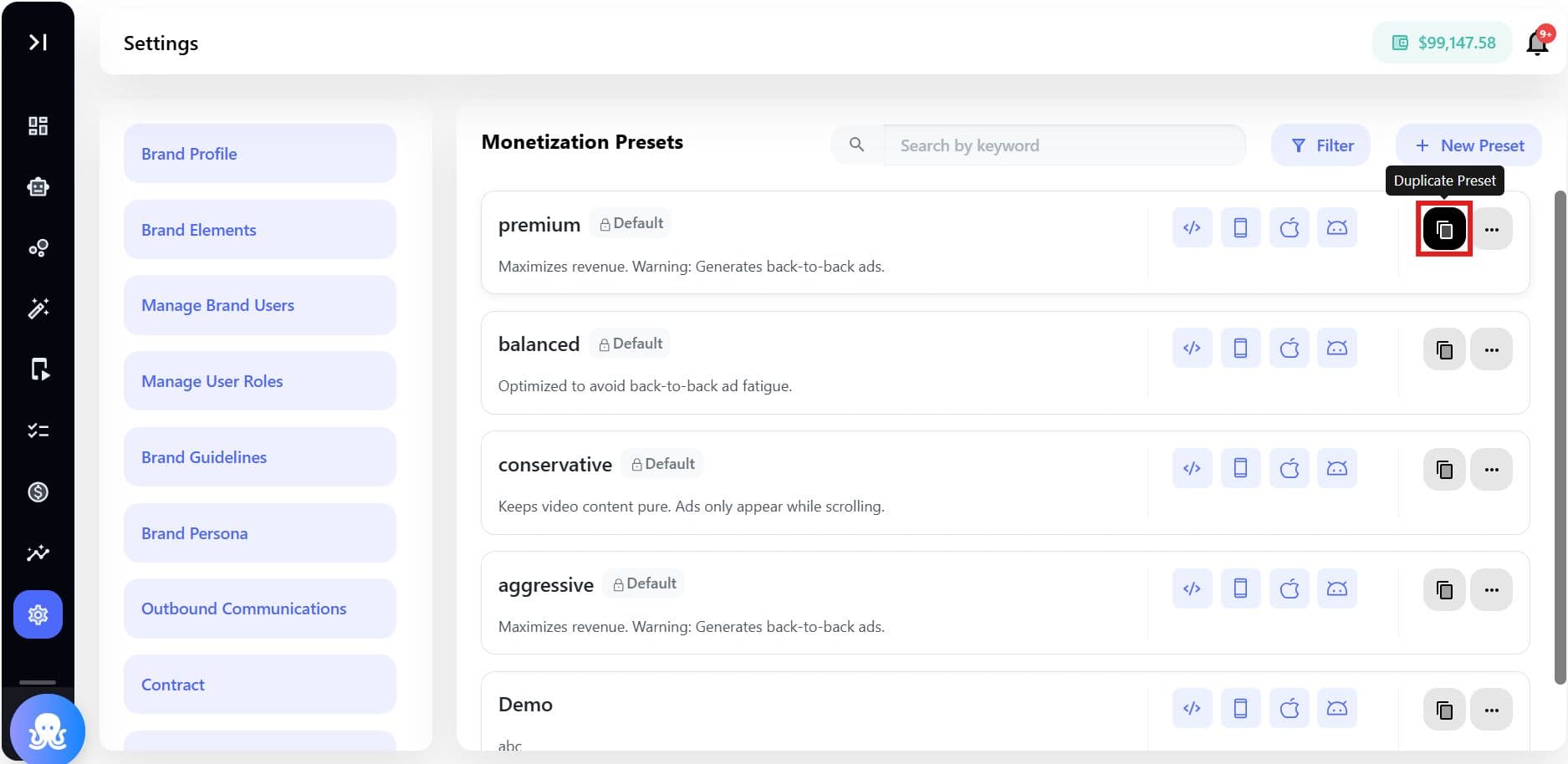
- Click ⧉ icon
- New preset created: "[Original Name] (Copy)"
- Fully editable
- Copies all configurations
2.1.3. Edit or Delete a Preset
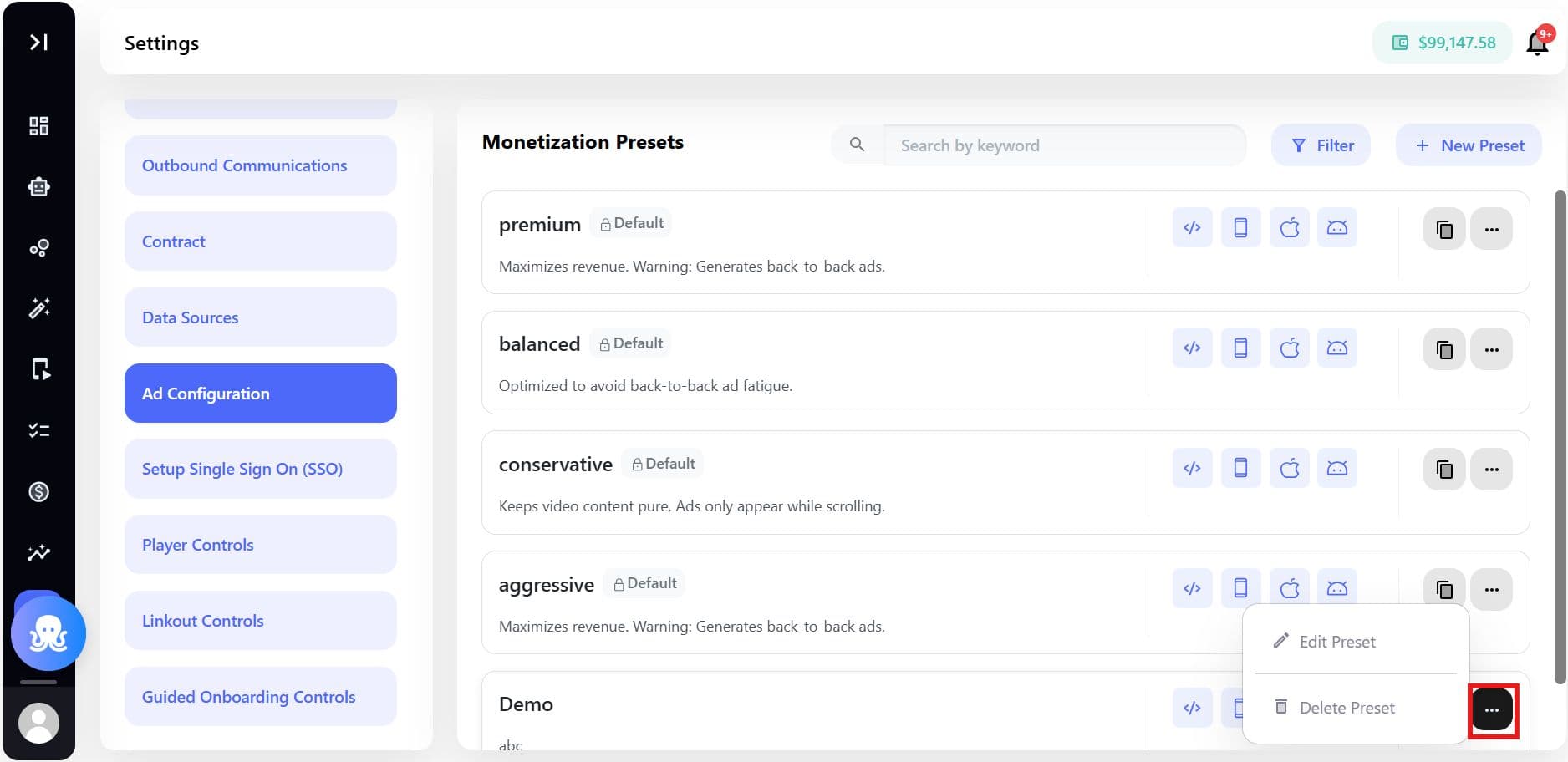
Actions Available
| Action | Behavior |
|---|---|
| Duplicate | Creates editable copy |
| Edit | Available for custom presets |
| Delete | Only for custom presets |
Steps:
- Click ⋯ > Edit or Delete
- Confirm action
- To delete a preset, it is permanently removed. To edit a preset, select it to open the respective configuration window, make the necessary changes, and then save them.
Preset Duplication and Deletion
Duplicating a preset copies all configurations (In-Feed, In-Stream, Sponsored Takeover ad settings, placements, embeds, environment rules).
- The copy is named "[Source Name] (Copy)" and is immediately editable.
- Deleting a preset is permanent and irreversible.
- System default presets cannot be deleted; the "Delete Preset" option is unavailable for them.
Step 2.2.1: For creating a new preset
- Click + New Preset
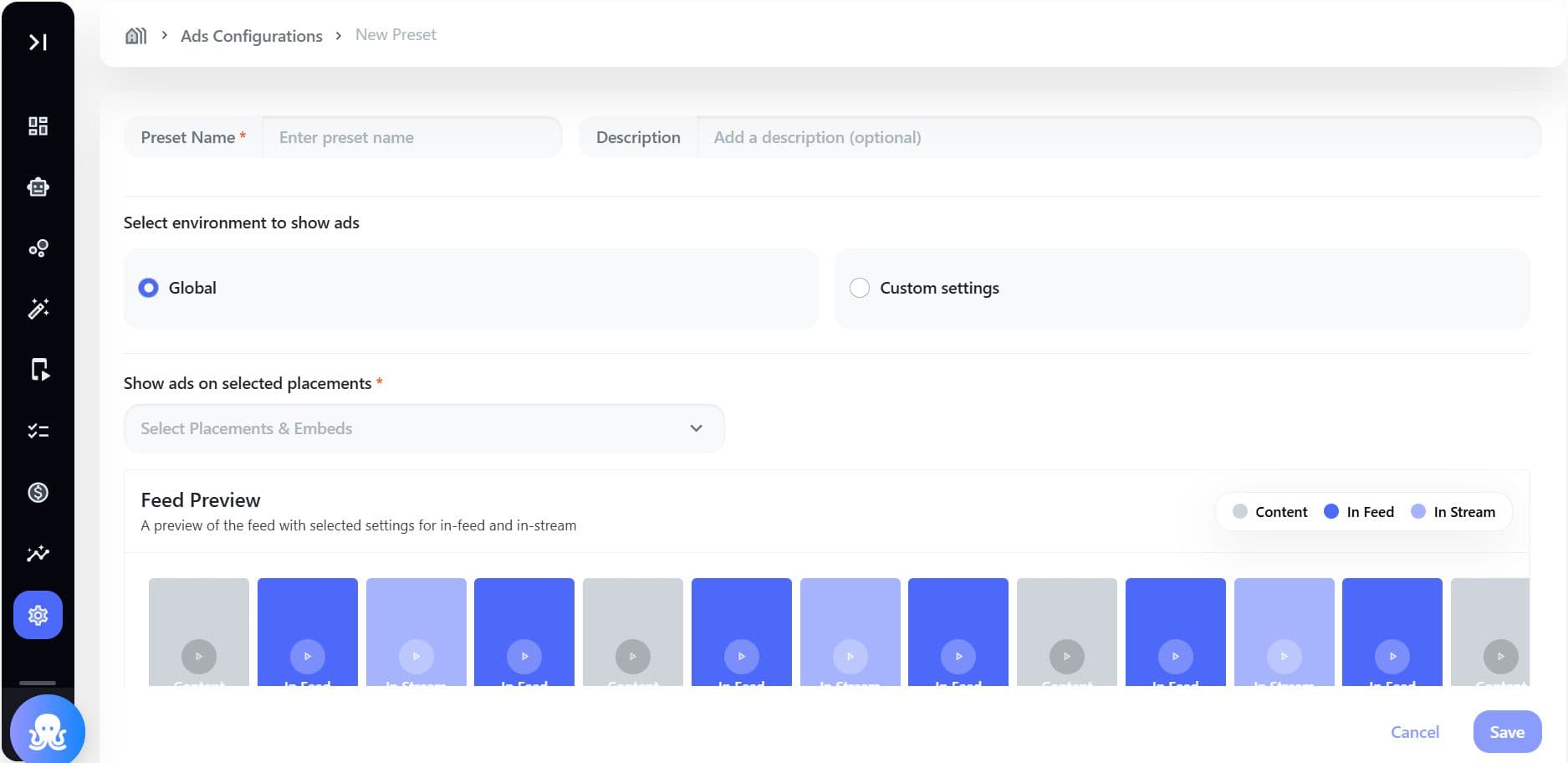
2. Enter:
- Preset Name (required)
- Description (optional)
3. Select Environment:
- Global (all platforms)
- OR specific platforms (Web, iOS, Android, Mobile Web)
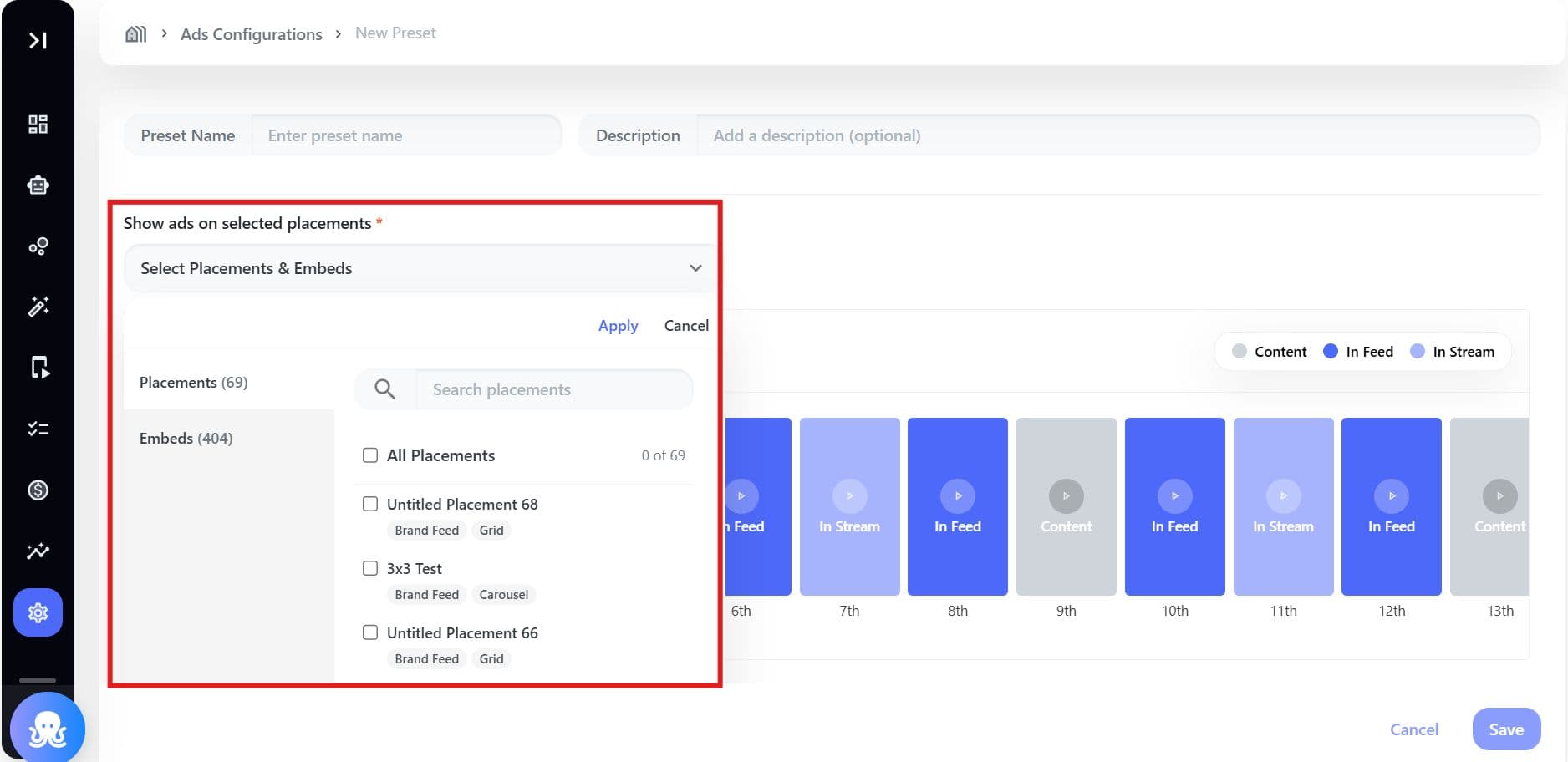
4. Select Placements & Embeds
5. Configure:
- In-Feed Ads (ads between content)
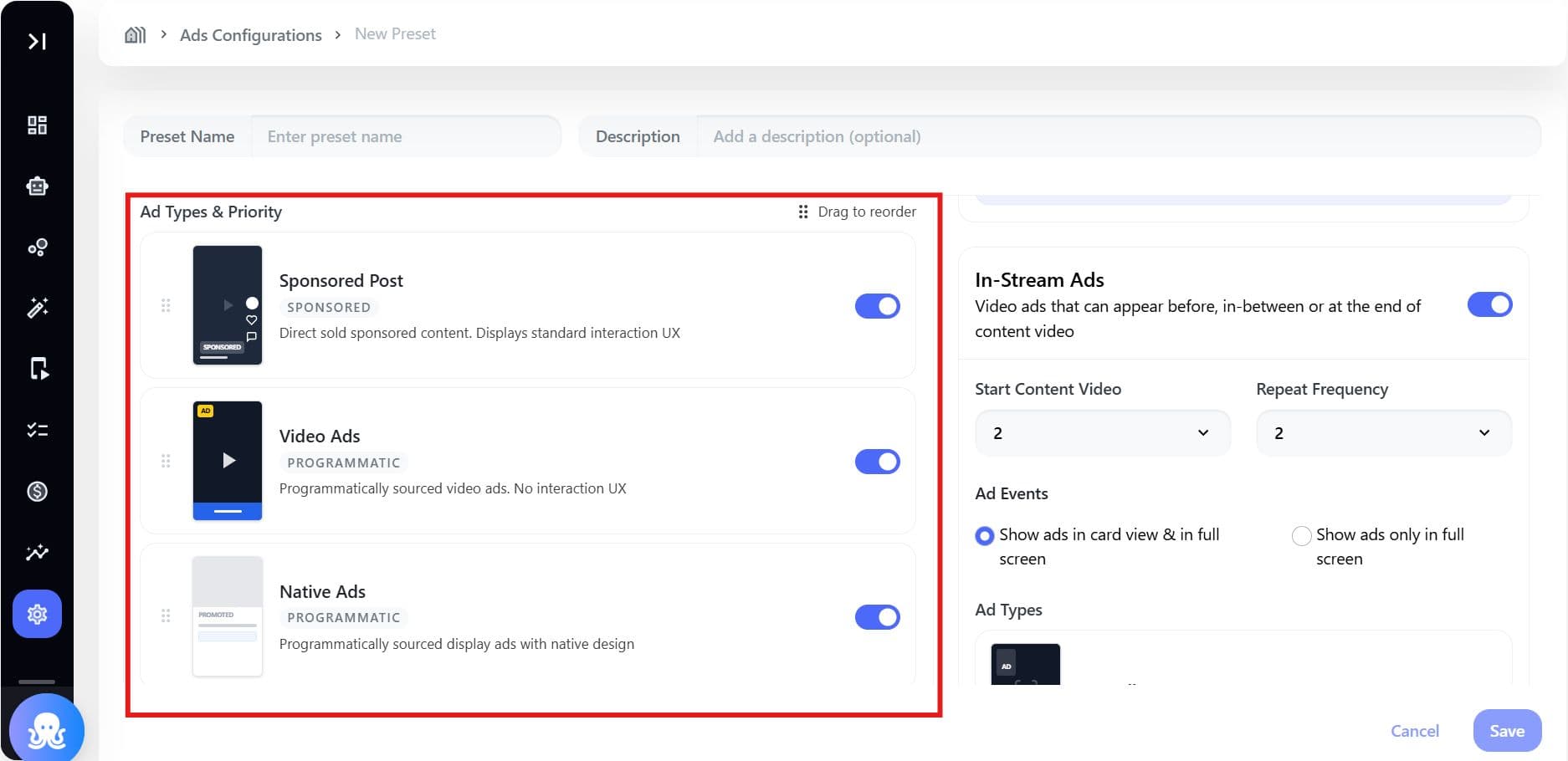
Ad Types & Priority
| Ad Type | Category | Description |
|---|---|---|
| Sponsored Post | Sponsored | Direct-sold content featuring a standard interaction user interface. |
| Video Ads | Programmatic | Video advertisements obtained through programmatic sources. |
| Native Ads | Programmatic | Programmatically sourced display ads with a design integrated to match the surrounding content. |
| Display Cards | Programmatic | Display advertisements acquired programmatically. |
| House (Fallback Content) | Fallback - Default On | Content that displays when no paid ad inventory is available (set within the Brand Control Center). |
- In-Stream Ads (ads inside videos)
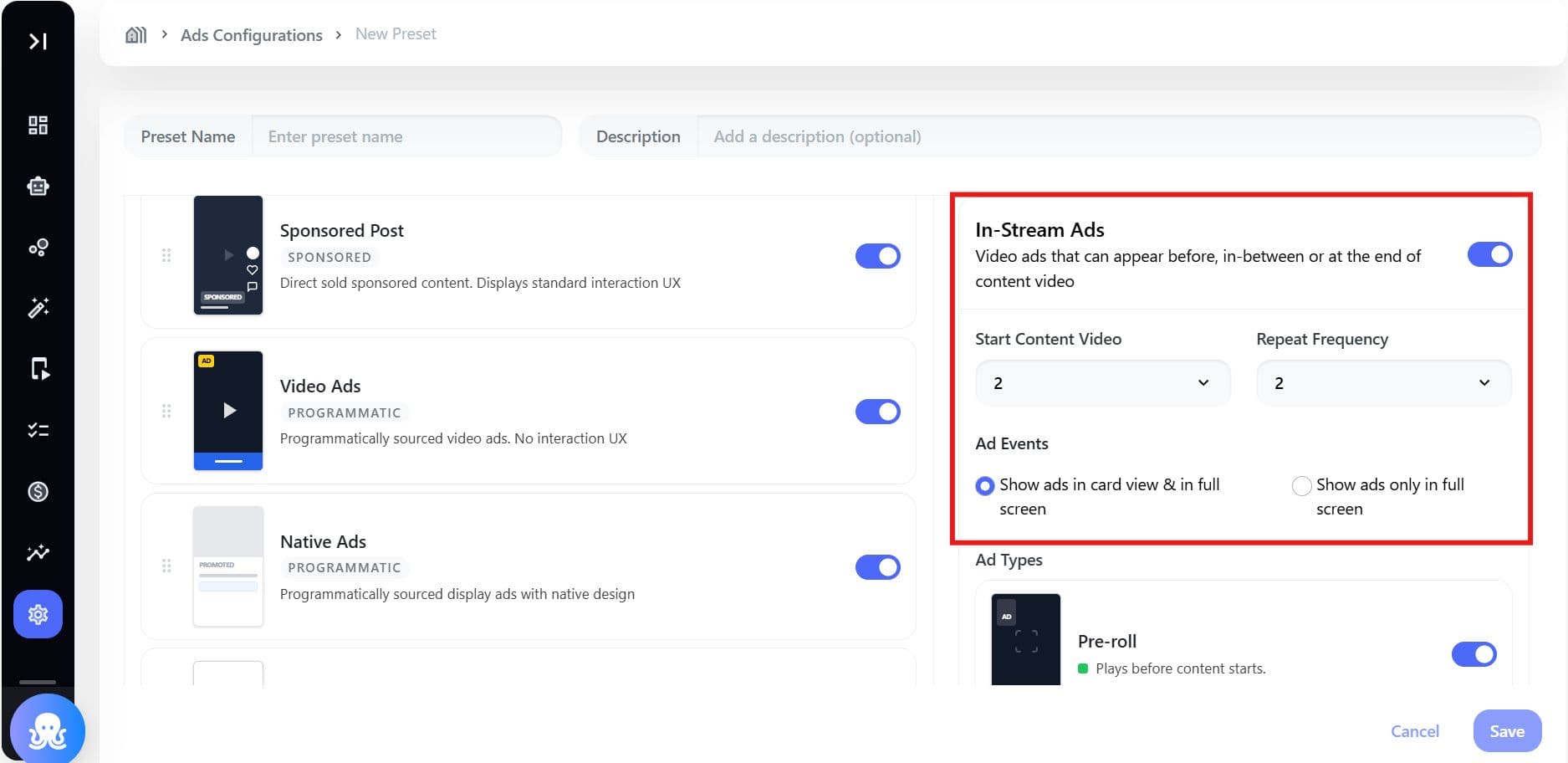
| Ad Type | Configuration | Impact on User Experience and Views |
|---|---|---|
| Pre-roll | Can be Toggled On/Off | The most common ad format, played before the main video. Excellent for guaranteed ad impressions. |
| Mid-roll | Can be Toggled On/Off | Interrupts the video halfway through. While it achieves a high completion rate, it may negatively impact the user experience (UX). |
| Post-roll | Can be Toggled On/Off | Displays after the video content finishes. This is the least disruptive option, but it results in the lowest number of guaranteed views. |
- Sponsored Takeover (full feed campaigns)
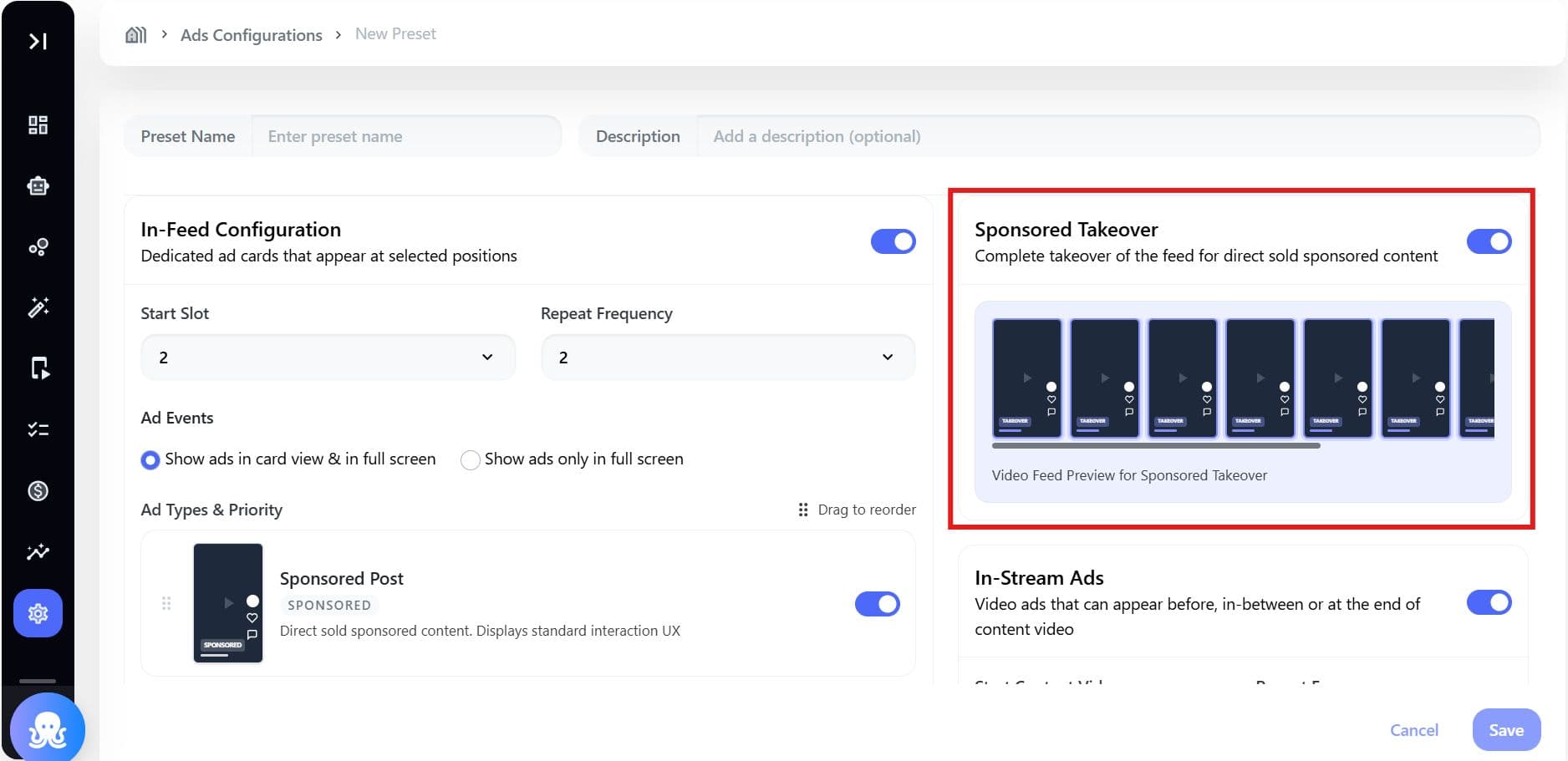
| Setting | Functionality |
|---|---|
| Sponsored Takeover Toggle | Controls the activation or deactivation of the full feed takeover mode. |
| Video Feed as Sponsored Takeover | A checkbox that, when selected, replaces the entire video feed area with the sponsored video content experience. |
| Preview Panel | Displays a real-time, miniature representation of the takeover layout across different feed slots on the right side of the interface. |
Controls
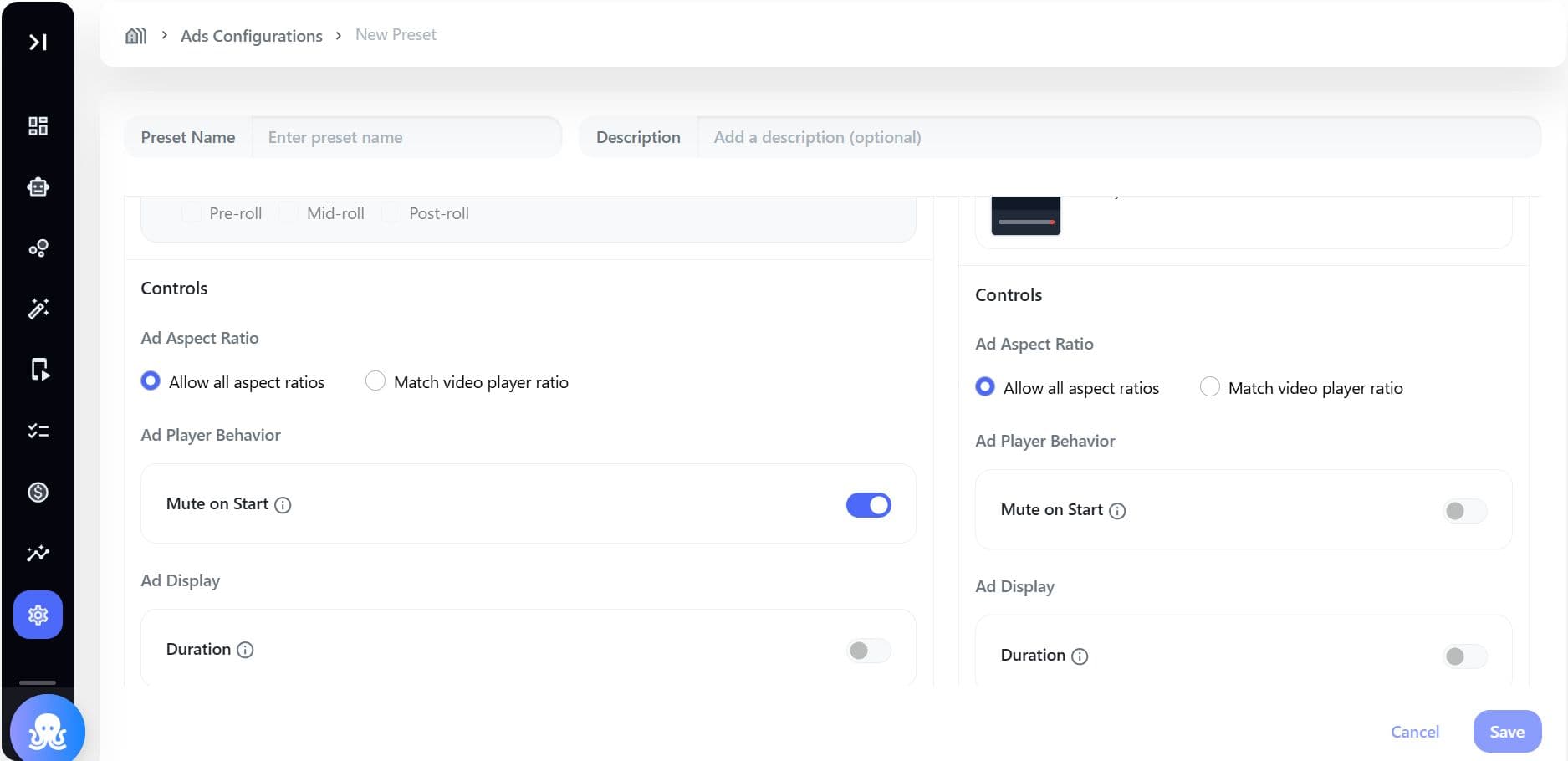
| Control Setting | Function and Viewer Experience | Options |
|---|---|---|
| Ad Aspect Ratio | Determines which ad creative aspect ratios are permitted to be displayed. | Allow all aspect ratios (Default): Accepts ads of any ratio. Match video player ratio: Only accepts ads that match the player's aspect ratio. |
| Mute on Start | Manages the initial audio state of in-feed video ads. | Toggle On/Off: When ON, video ads begin playing without sound. |
| Duration Timer | Controls the visibility of the ad's countdown or timer for the viewer. | Toggle On/Off: When ON, the remaining duration of the ad is shown to the viewer. |
Understand how ads are placed
Ads follow a simple pattern:
- Start Slot - where the first ad appears
- Repeat Frequency - how often ads repeat
Example:
- Start Slot = 2
- Repeat = 4
Ads will appear at: 2, 6, 10, 14...
This helps you control how frequently users see ads while scrolling.
Assign preset to placements
- Select where the preset should apply (feed, embeds, etc.)
- Save your selection
Once assigned, ads will start appearing based on your configuration.
Validate using Feed Preview
Before publishing: Check how ads appear in:
- Feed
- Video playback
- Sponsored takeover mode
Default presets (quick start options)
If you don’t want to configure from scratch, use these:
| Preset | Best for |
|---|---|
| Premium | Clean experience with only sponsorships |
| Balanced | Optimized revenue with minimal disruption |
| Conservative | Content-first experience |
| Aggressive | Maximum monetization |
You can assign placements, but cannot modify their internal logic.
Specs & limitations
What you can do
- Create unlimited custom presets (no limit defined yet)
- Apply presets across multiple platforms
- Duplicate presets for faster setup
- Preview configurations in real time
- Preset Name: Text - Maximum 50 characters (mandatory)
- Description: Text - Maximum 200 characters (optional)
What you cannot do (system presets)
- Edit ad logic
- Change ad frequency
- Delete system presets
Important behaviors
- If no ads are available - system tries fallback (House Ads)
- If fallback is also unavailable - ad slot is skipped (no empty space)
- Preview updates within ≤500ms of changes
Best practices
- Start with Balanced preset, then customize
- Avoid too many mid-roll ads (can impact experience)
- Always configure fallback (House Ads)
- Use Sponsored Takeover for high-impact campaigns only
FAQs
Can I edit system presets?
No. Only placement assignment is allowed.
Can multiple presets apply to one placement?
Yes (depends on backend logic - precedence rules to be determind).
What happens if I don’t configure fallback ads?
House ads will serve as default fallback.
Is there a limit to presets?
Not defined currently, (future consideration).
Does preview reflect real production behavior?
Yes, it mirrors actual feed logic.
Why does preview not match expectations?
Ensure preset configuration aligns with slot logic and environment targeting.
What happens if no ads are available?
Fallback > House > Collapse slot
Can multiple presets apply to one placement?
Depends on backend precedence (future clarification)
What’s Next (Future Enhancements)
- A/B testing presets
- Scheduled monetization
- Revenue analytics overlay
- Preset marketplace
