

How Do Brands Generate Embed Codes from Brand Control Center?
Overview
This guide is for Brand Admins, growth teams, developers, and product owners who are responsible for publishing Genuin-powered video feeds and community experiences across brand-owned websites and apps.
Use this when you want to:
- Publish video feeds as onsite embeds without custom backend work
- Maintain centralized control over placement behavior, governance, and updates
- Ensure embeds remain brand-safe, contextual, and measurable
Embed codes are the bridge between Brand Control Center and your owned digital surfaces. How you generate and configure embeds directly determines:
- What content users see
- How it behaves across devices
- How engagement, redirection, and reporting work
By generating embed codes directly from Brand Control Center, brands ensure that every onsite experience stays governed, consistent, and updatable without engineering rework.
What Is an Embed Code in Genuin?
An embed code is a pre-configured snippet generated from Brand Control Center that allows brands to display:
- Brand feeds
- Community or group feeds
- Contextual or personalized feeds
…directly on web or app surfaces.
Each embed code is tied to a specific configuration in Brand Control Center, meaning:
- Content rules
- Feed type
- Layout and interaction settings
- Governance and moderation logic
are all controlled centrally.
Where Embed Codes Are Generated in Brand Control Center
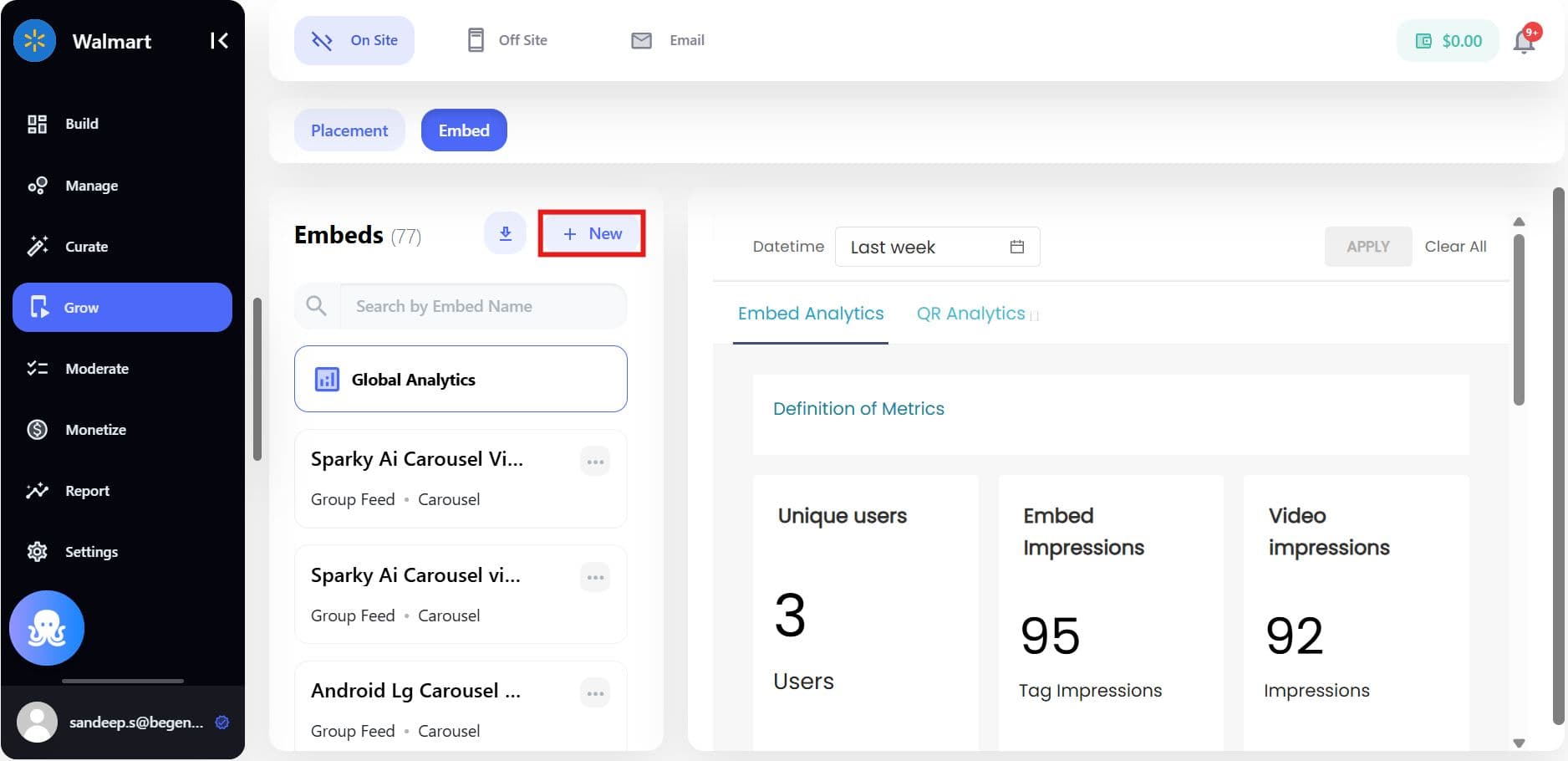
Navigate to: Grow > Onsite > Embeds
This section acts as the embed management layer for all onsite placements.
From here, brands can:
- Create new embeds
- Edit existing embed configurations
- Generate and copy embed codes
- Reuse embeds across multiple pages
Step-by-Step: Generating an Embed Code
Step 1: Create a New Embed
In Grow > Onsite > Embeds, click Create Embed.
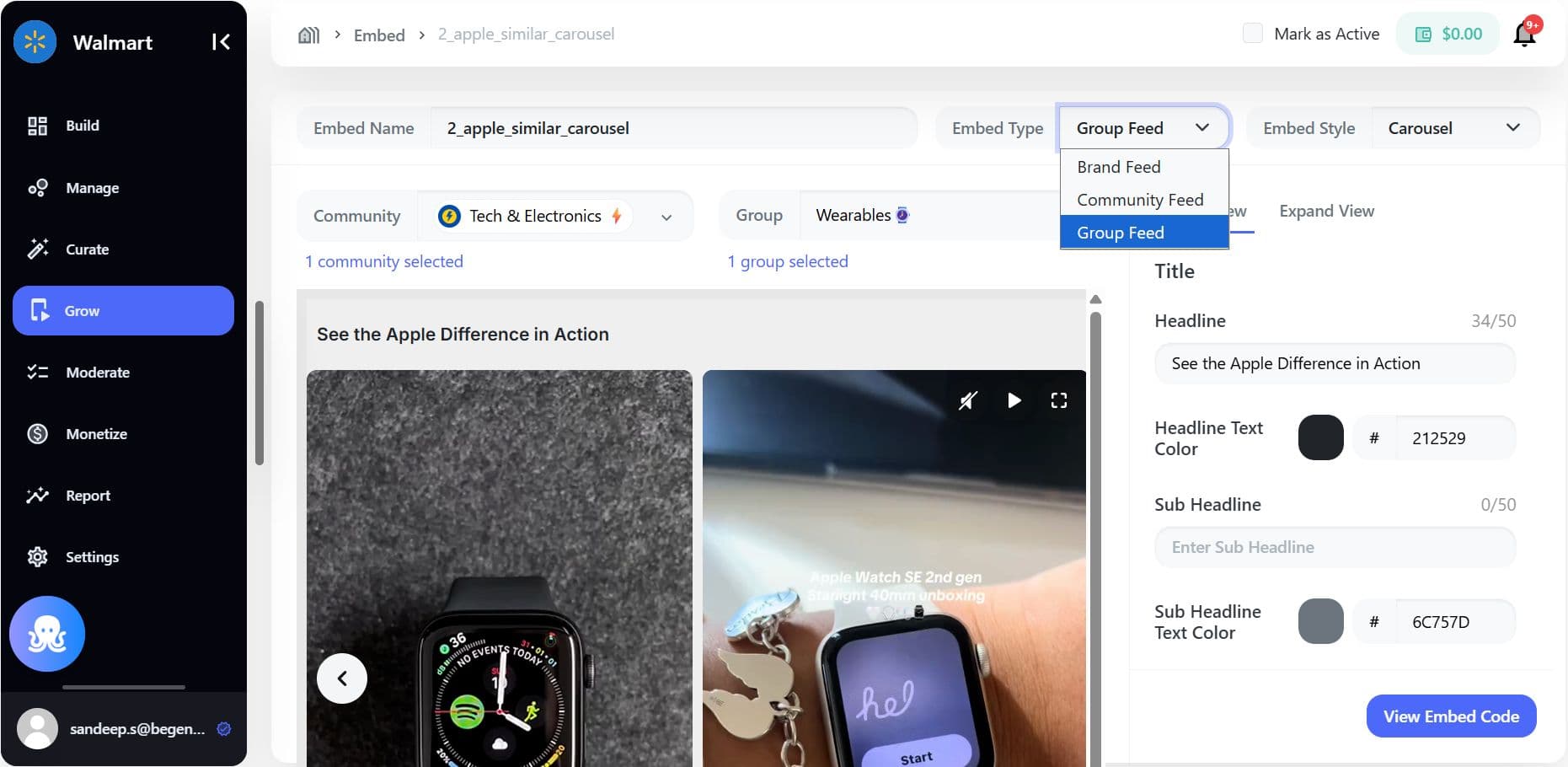
You’ll be asked to define the embed type:
- Brand feed
- Community feed
- Group feed
- Contextual feed
Step 2: Define Embed Identity
Configure the basic embed details:
- Embed Name (internal reference)
- Embed Type (Brand / Community / Group)
- Target Brand, Community, or Group
This ensures the embed pulls content from the correct source.
Step 3: Configure Embed View and Layout
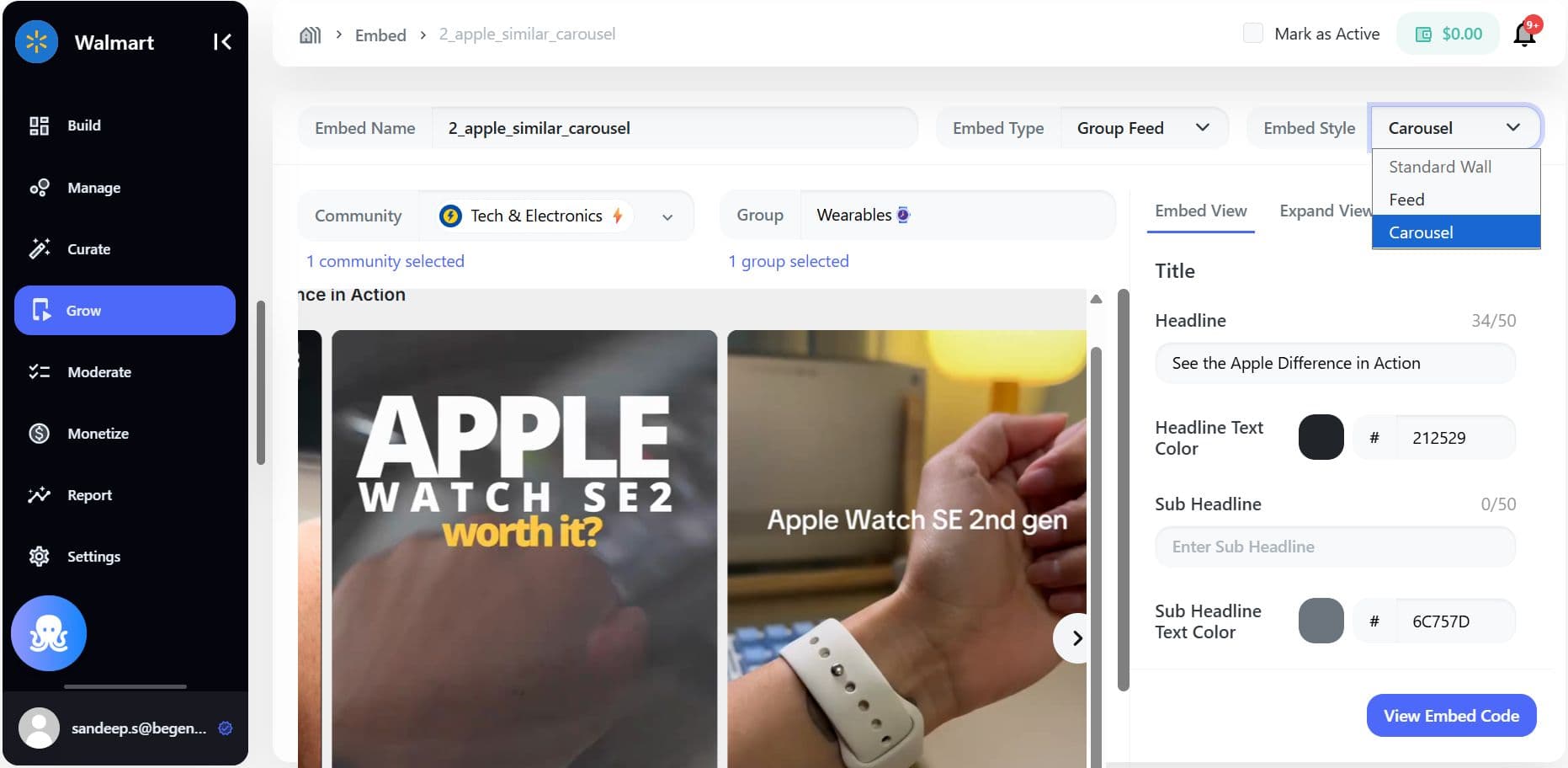
Define how the embed appears on your site or app:
- Layout style (carousel, feed, grid)
- Desktop and mobile dimensions
- Adaptive video display (responsive vs fixed aspect ratio)
- Floating or inline behavior
These settings determine visual consistency across environments.
Step 4: Configure Interaction and Engagement
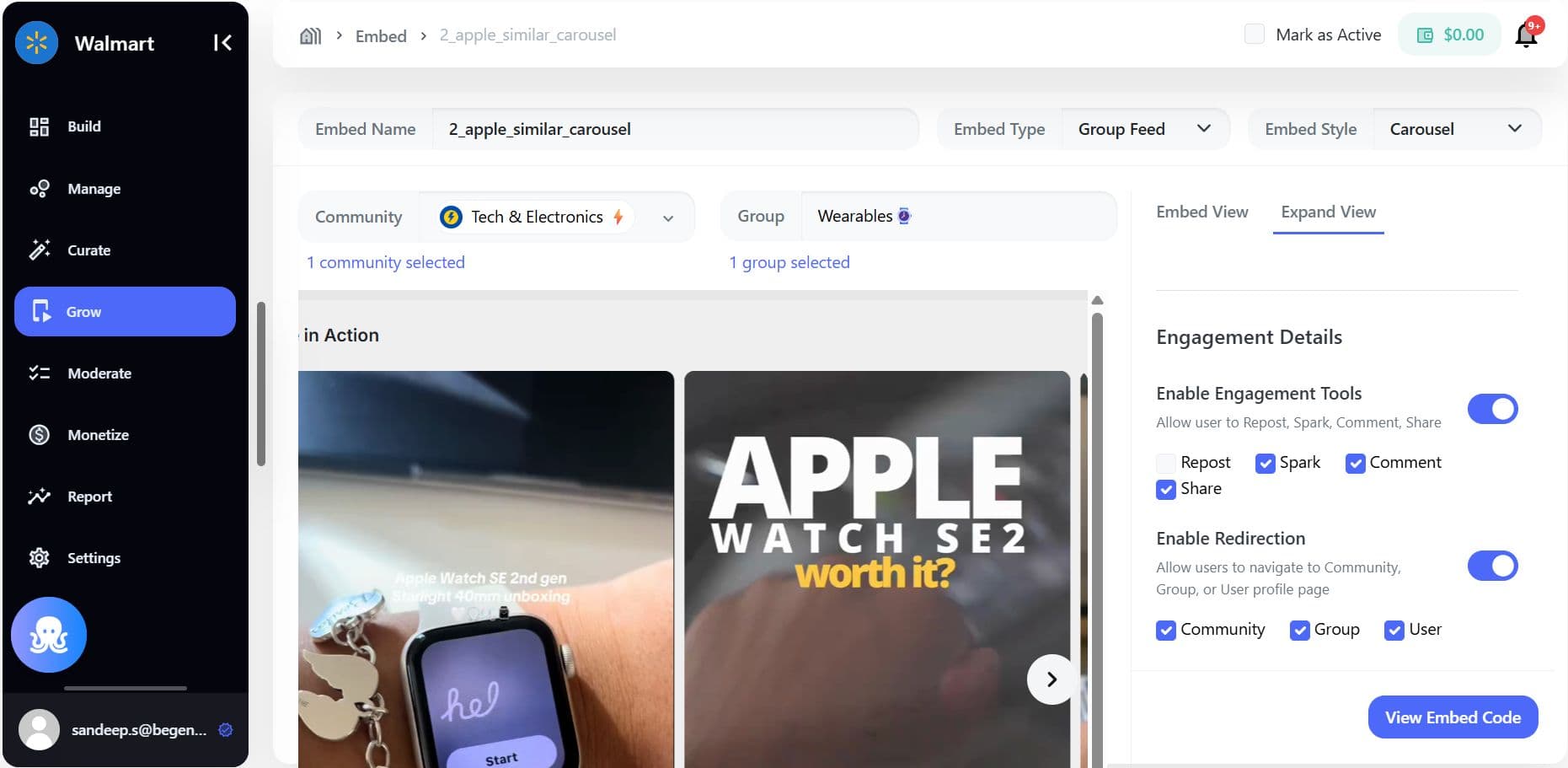
Control how users can interact with embedded content:
- Enable or disable reactions, comments, reposts, and sharing
- Show or hide view counts and creator usernames
- Enable redirection to:
- Community pages
- Group feeds
- Creator profiles
This ensures embeds align with your engagement and conversion goals.
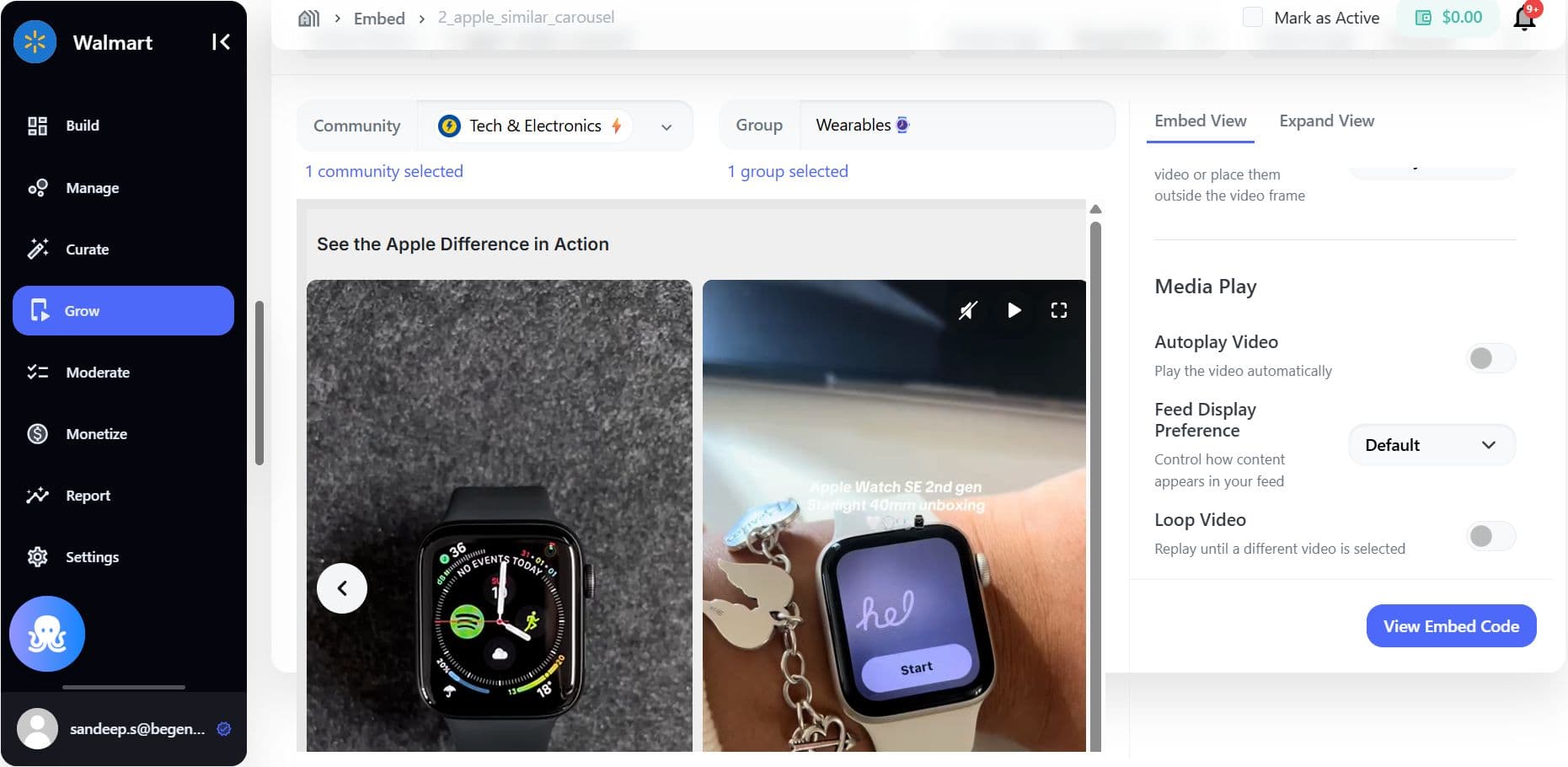
Step 5: Configure Media Playback Behavior
Define how videos behave inside the embed:
- Autoplay on load
- Loop playback
- Focus view vs default view
- Carousel highlight behavior
Playback rules directly affect watch time and engagement.
Step 6: Apply Governance and Restrictions
All embed codes inherit governance from Brand Control Center, including:
- Brand guidelines and tone
- Content and moderation rules
- Allowed link-outs and CTAs
- Approval workflows
This ensures no embed bypasses brand safety or editorial oversight.
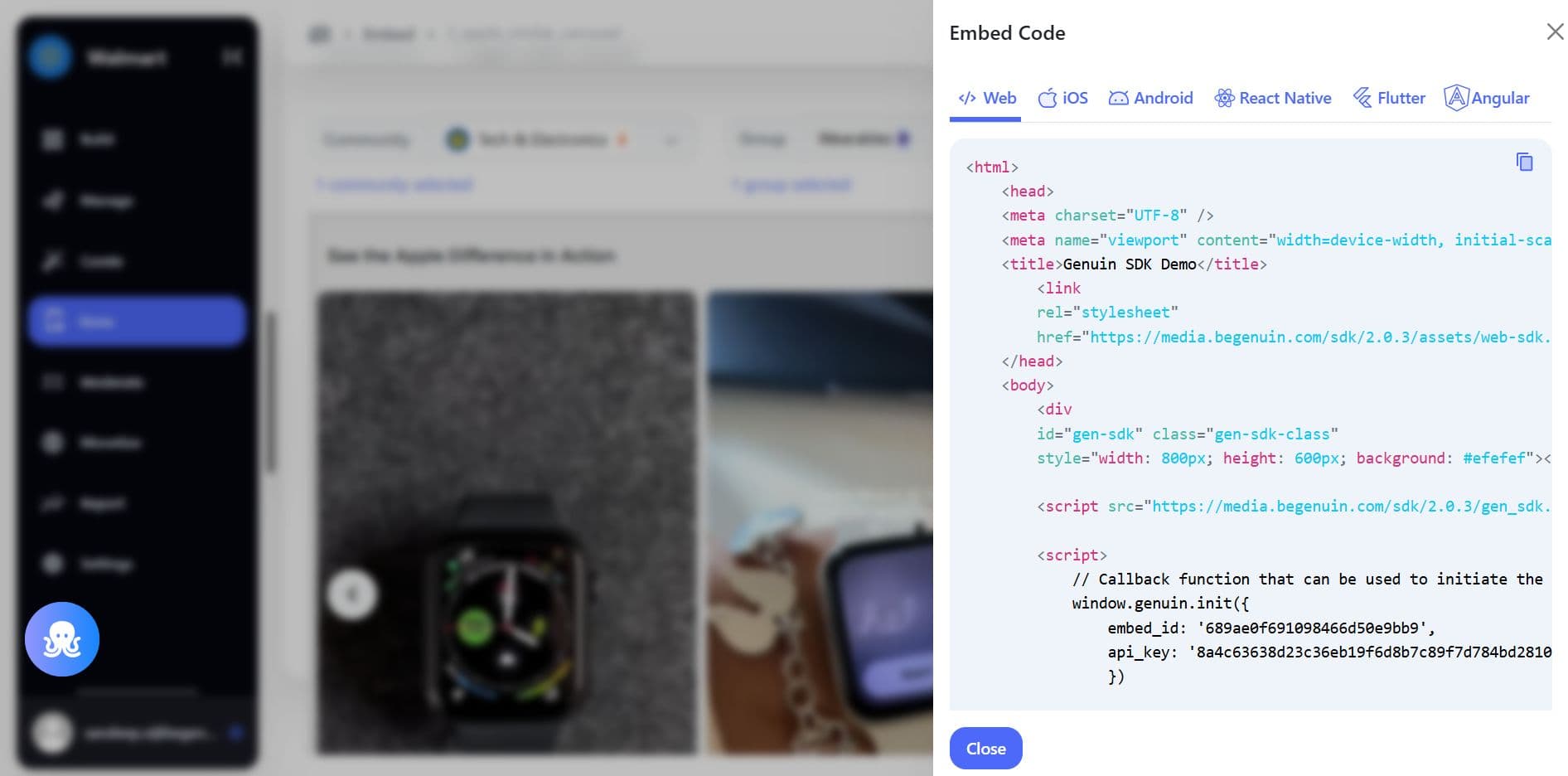
Step 7: Generate the Embed Code
Once configuration is complete:
- Click Generate Embed Code
- Copy the provided code snippet
The embed code is now ready to be added to:
- Website pages
- Web apps
- Native apps (via SDKs)
How Embed Codes Stay Updated Automatically
One of the key advantages of Genuin embeds is centralized control.
When you update:
- Content rules
- Communities or groups
- Layout or interaction settings
…all live embeds using that code update automatically - no redeployment required.
This allows brands to iterate and optimize continuously.
Supported Environments
Embed codes generated from Brand Control Center can be used across:
- Web (via script embed)
- Mobile web
- Native apps (via iOS and Android SDKs)
Environment-specific behavior (desktop vs mobile) is handled through embed configuration.
Common Use Cases
- Product Detail Pages (PDPs) with shoppable brand videos
- Discovery or inspiration sections
- Campaign landing pages
- Community hubs
- Loyalty or post-purchase pages
Each use case can have a dedicated embed with tailored behavior.
Governance, Reporting, and Control
Every embed:
- Is tied to a brand-controlled configuration
- Respects moderation and approval workflows
- Feeds into reporting and analytics
- Maintains audit logs for changes
This ensures embeds scale safely across teams and markets.
Specs & Limitations
- Embed availability depends on plan and contract
- Some advanced interactions require SDK-based integration
- Role-based access controls who can create or edit embeds
Summary
Generating embed codes from Brand Control Center allows brands to publish rich, video-first community experiences across owned surfaces, without sacrificing control.
By centralizing embed configuration, governance, and updates, Brand Control Center ensures every embed is:
- On-brand
- Brand-safe
- Context-aware
- Continuously optimized
Embeds become a scalable distribution layer for your Commerce Media Network.
